
Buying a smartboard is not only about choosing the largest screen or the highest specification. The right system should match the room, the number of users, the type of content being presented, and the way teachers or teams actually work. This smartboard buying guide explains the practical factors to review before investing in an interactive display for a classroom, training room, boardroom, or collaborative workspace.
A well-planned setup can simplify presentations, improve participation, support hybrid communication, and reduce dependence on separate projectors, whiteboards, speakers, and cables. A poorly matched unit may still look impressive, but it can create visibility problems, complicated workflows, or features that remain unused. The best decision starts with how the room will operate every day.
What Does a Smartboard Actually Replace?
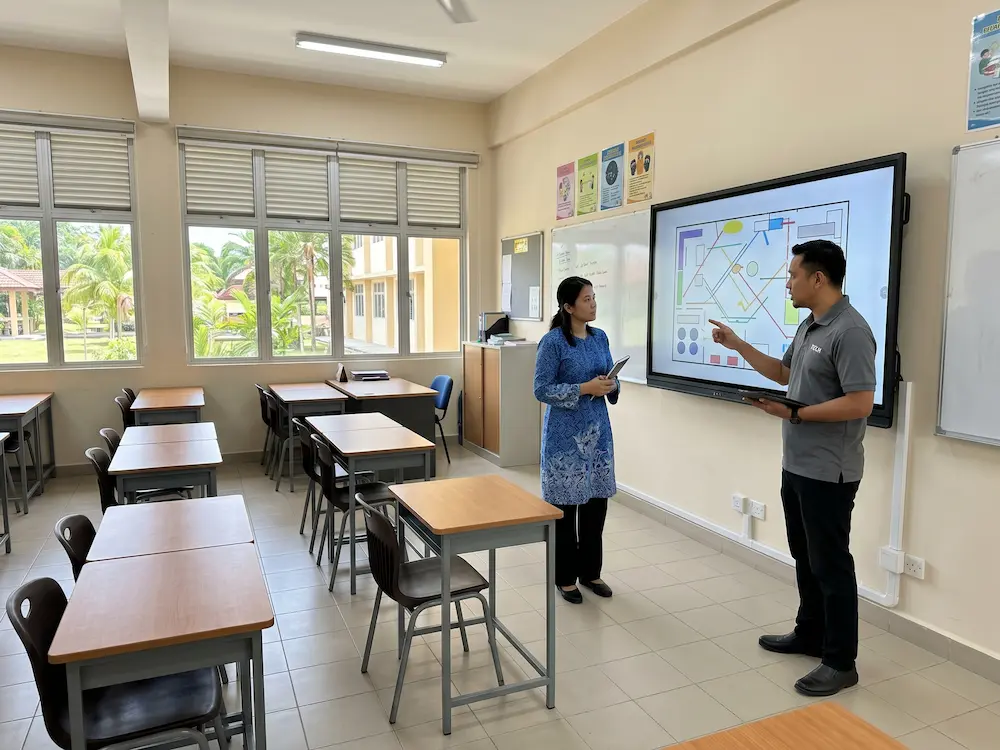
A smartboard is a large interactive display that allows users to present, write, annotate, browse, and control digital content directly from the screen. It combines several tools that were traditionally installed separately, including a display, whiteboard, touch interface, speakers, screen-sharing platform, and optional computer module.
The technology belongs to the wider category of
interactive whiteboards.
Modern flat-panel models remove the need for a projector and allow the presenter to interact directly with content. However, different rooms require different combinations of size, operating system, connectivity, camera, microphone, and mounting options.
Start With the Room and Primary Use
Before comparing specifications, define the main activity. This smartboard buying guide starts with the room because a classroom may prioritise writing accuracy, lesson tools, and student participation. A corporate meeting room may require wireless presentation, video conferencing, and easy access to Microsoft Office. A training centre may need both, together with recording and flexible mobile placement.
It is also useful to identify who will operate the screen. A system shared by many teachers or departments should have a simple home screen and a consistent workflow. If only one technical team will use it, more advanced configurations may be suitable. This distinction prevents the organisation from paying for complexity that slows down everyday users.
Choose the Right Screen Size
Screen size affects visibility, writing comfort, wall space, and budget. In this smartboard buying guide, common sizes include 55, 65, 75, 86, and 98 inches, but the largest option is not automatically the best. The viewing distance and room capacity should guide the decision.
| Room Type | Typical Requirement | Planning Direction |
|---|---|---|
| Small discussion room | Close viewing and compact seating | Prioritise comfortable writing height and simple wireless sharing |
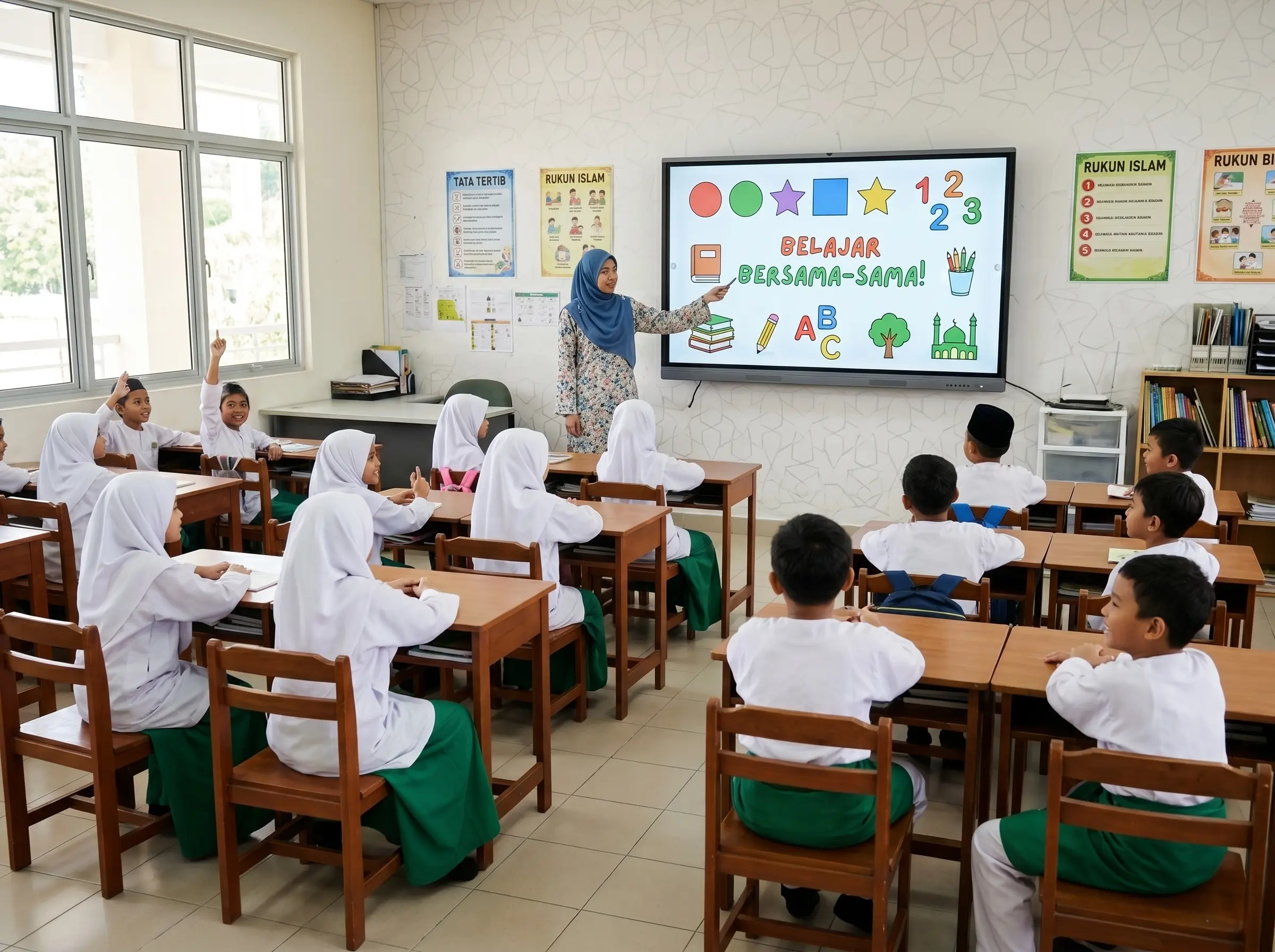
| Standard classroom | Clear visibility from the back row | Balance screen size, writing area, and front-wall space |
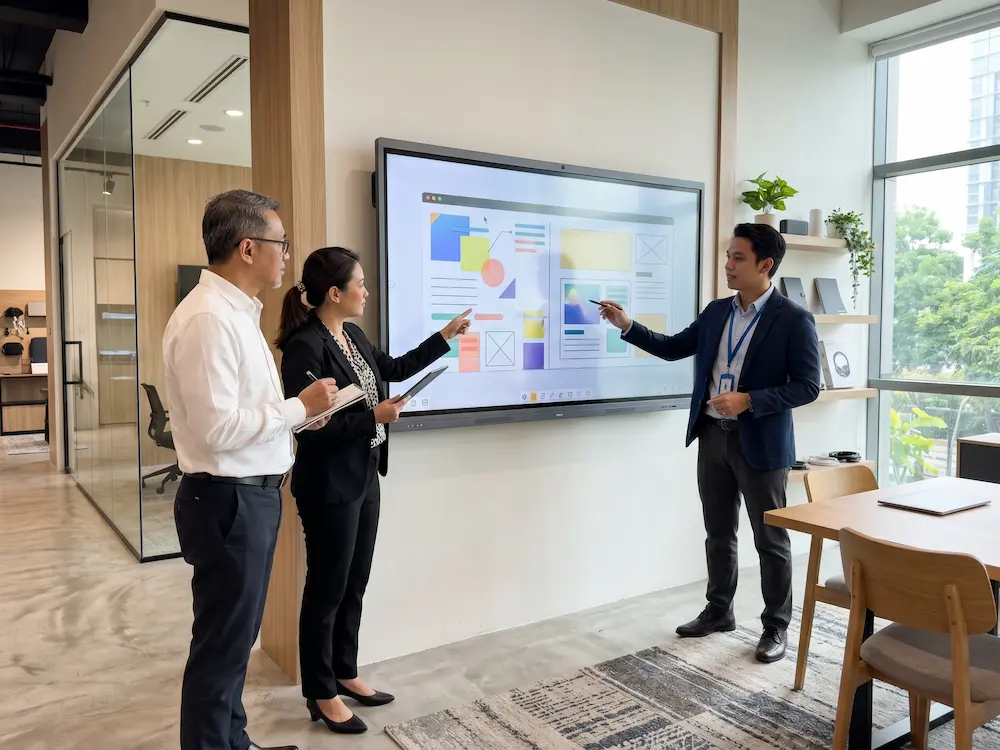
| Boardroom | Presentations, meetings, and remote participants | Plan the camera angle, microphone coverage, and seating layout together |
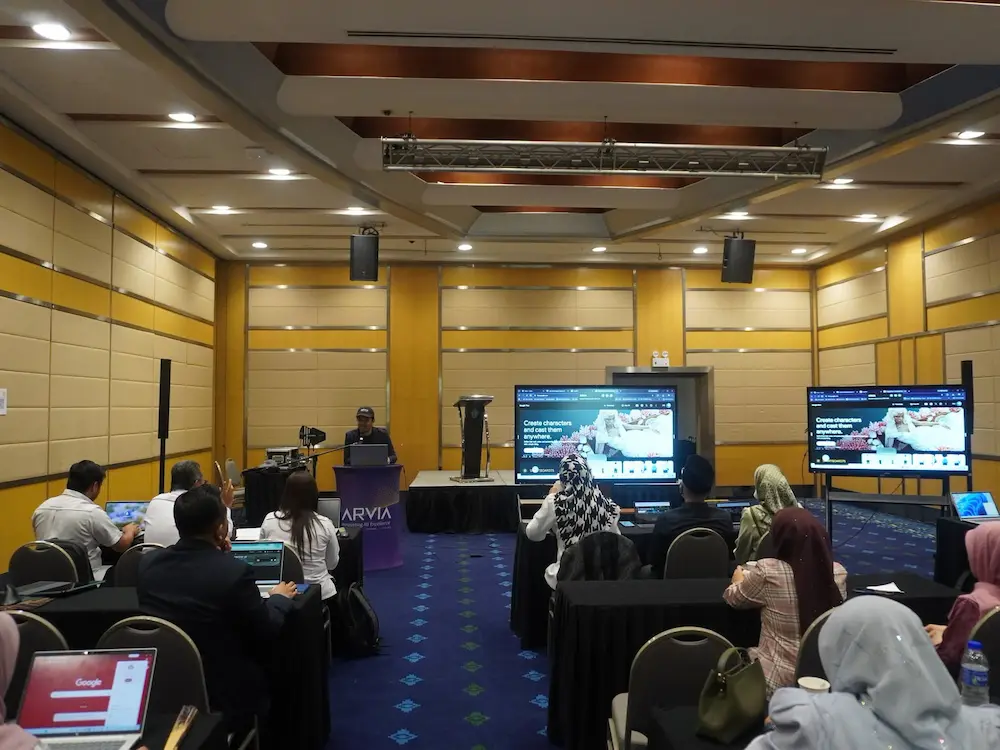
| Training or seminar room | Larger audiences and flexible activities | Consider a larger display or additional supporting screens |

Review the Operating System and Software
Many interactive displays include an Android system for whiteboarding, browsing, file viewing, and wireless sharing. This can be enough for straightforward lessons and presentations. An optional Windows computer module may be useful when the organisation relies on desktop applications, specialised teaching software, full Microsoft Office workflows, or Windows-based video conferencing tools.
A good smartboard buying guide should therefore separate what is required immediately from what can be added later. Choosing a system that supports optional expansion may help organisations manage the initial budget without blocking future requirements.
Test the Writing and Touch Experience
Specifications alone do not fully describe the writing experience. A practical smartboard buying guide should always recommend a hands-on test. During a demonstration, check how quickly digital ink follows the pen, whether the palm can rest naturally on the screen, and how easily users can change colours, erase content, move objects, or save notes.
For collaborative activities, check whether several users can write at the same time without the display confusing their inputs. Teachers should also test the whiteboard application with the actual type of lesson they conduct. A short hands-on session often reveals more than a long specification sheet.
Plan Wireless Sharing and Hybrid Meetings
Wireless screen sharing allows presenters to display content from laptops, tablets, or phones without moving cables around the room. This smartboard buying guide also recommends checking how many devices can connect, whether presenters can take control from the screen, and whether the network setup supports the required workflow.
For hybrid communication, the display should be planned together with the camera, microphone, speakers, room acoustics, and conferencing platform. A built-in or external camera may work well in a small room, while a larger boardroom may require wider microphone coverage or an AI camera that supports automatic framing.

Do Not Ignore Installation and Support
The installation method affects safety and usability. Any complete smartboard buying guide should include mounting, cable management, and writing height. Wall mounting provides a clean permanent setup, while a mobile stand allows the display to move between spaces. The screen height should be comfortable for writing, and cables should be secured without blocking ports or creating a trip hazard.
After-sales service is equally important. Confirm who will provide installation, user training, warranty support, troubleshooting, and replacement parts. A reliable local support team can reduce downtime and help new users become confident more quickly.
Smartboard Buying Guide Checklist
- Define the main purpose of the room.
- Measure the viewing distance, wall space, and seating capacity.
- Confirm whether Android is sufficient or Windows is required.
- Test writing responsiveness and multi-user touch.
- Check wireless sharing compatibility with existing devices.
- Plan cameras, microphones, and conferencing tools as one system.
- Review mounting, installation, training, warranty, and local support.
Arvia Smartboard Solutions in Malaysia
Arvia provides interactive display solutions for classrooms, universities, training centres, corporate meeting rooms, and government facilities. As highlighted throughout this smartboard buying guide, the right configuration should be planned according to room size, operating system requirements, presentation workflow, mounting preference, and hybrid communication needs.
Organisations can explore Arvia’s
interactive smartboard solutions
and related
touchscreen solutions.
A product demonstration or site review can help decision-makers compare screen sizes, touch performance, software, and room integration before selecting a model.
Need help choosing the right smartboard?
Tell Arvia about your room size, audience, applications, and preferred workflow. Our team will help you identify a practical configuration for your classroom or meeting space.
Final Thoughts
The best smartboard is the one that fits the room and supports the people using it. Screen size, software, touch response, connectivity, conferencing tools, and support should be evaluated as one complete system rather than separate specifications.
By following this smartboard buying guide, schools and organisations can avoid unnecessary complexity and choose a solution that delivers practical value every day. A careful demonstration and room assessment before purchase can make the difference between simply installing a screen and creating a genuinely useful collaborative environment.